
ArredoCAD makes intensive use of the graphics card for 3D visualization management, rendering, and core functionality. For this reason, a dedicated graphics card is required.
To ensure stability, optimal performance, and compatibility with the latest ArredoCAD features, it is essential to keep graphics card drivers up to date. Outdated drivers may cause slowdowns, display errors, rendering issues, or general software instability.
Check the graphics card model installed on the system (NVIDIA or AMD) via Windows Settings, Device Manager, or Task Manager, then refer to the corresponding section of this guide. Before proceeding with the update, make sure ArredoCAD is closed.
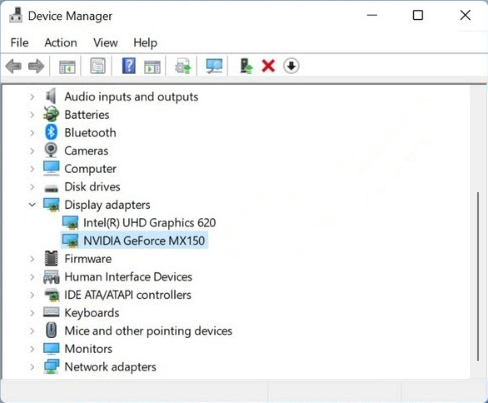
How to Update NVIDIA Drivers
The easiest way to keep NVIDIA graphics card drivers up to date is to use NVIDIA App, the official NVIDIA software for Windows systems, which integrates and replaces previous management tools.
If NVIDIA App is not already installed on the system, visit the official NVIDIA website and access the page dedicated to the application. Start the download by clicking Download now  and, once complete, run the downloaded file to begin the installation process.
During the initial setup, select Game Ready Driver (For gamers) as the driver type and proceed with the guided installation. Open NVIDIA App from the Start menu or from the icon in the system tray.

Access the Drivers section  from the side menu. Verify that Game Ready Driver is selected on the right. If an update is available, the Download button will be displayed.
You can also use Check for updates  to force the check.

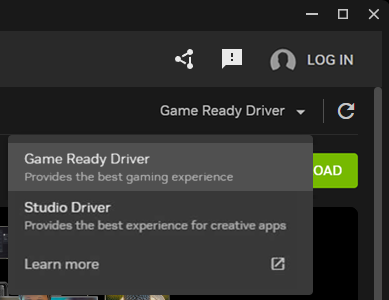
Start downloading the update and wait for the process to complete. Once the download is finished, select Install  . Keep Express Installation enabled and start the installation.
During installation, the screen may flicker or temporarily go blank; this is normal behavior. Wait for the procedure to complete without interrupting it.

At the end of the installation, a system restart may be required.
Setting the Preferred Graphics Card (NVIDIA)
On systems with integrated graphics and a dedicated graphics card, the system may automatically select the less powerful GPU. The following settings allow you to force the use of the more powerful graphics card and ensure optimal performance and stability.
Open the NVIDIA Control Panel by right-clicking the icon in the system tray, then go to Manage 3D settings (1).
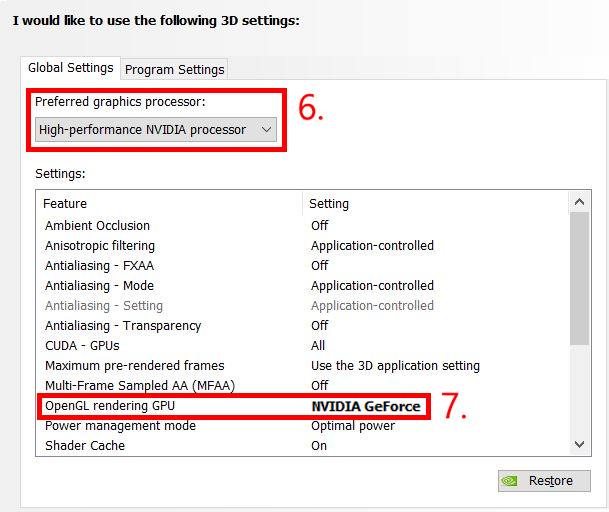
Select the Program Settings (2) tab and add ArredoCAD (3,4,5). If it is not already listed, use Browse to select ArredoCAD from the path: “C:\ArredoCAD\DATABASE\ARREDOCAD_2009\Arredocad.exe”.
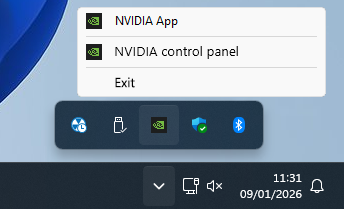

If available, in Select the preferred graphics processor for this program, choose High-performance NVIDIA processor (6).
In the Specify the settings for this program, section, locate OpenGL rendering GPU and select the dedicated NVIDIA graphics card from the list (7). Apply the changes by clicking Apply.
Once completed, close the NVIDIA Control Panel and restart the software for the settings to take effect.
How to Update AMD Drivers
The easiest way to keep AMD graphics card drivers up to date is to use AMD Software: Adrenalin Edition, AMD’s official application for managing and updating drivers on Windows systems.
If the software is not already installed, visit the official AMD website and download the latest version of AMD Software: Adrenalin Edition.
Once the download is complete, run the file and complete the guided installation.
After launching AMD Software, check the Driver and software section to see if a new version is available. If so, start the download and proceed with the installation. Wait for the procedure to complete without interrupting it.

Setting the Dedicated GPU and Graphics Preferences (AMD)
On systems with integrated graphics and a dedicated AMD graphics card, the operating system may automatically assign the less powerful GPU to the application. The following settings ensure the use of the dedicated graphics card.
Open AMD Software: Adrenalin Edition and go to the Games section. In the Graphics section, make sure the global profile is set to HYPR-RX.

To assign the dedicated GPU to ArredoCAD, open Windows Settings → System → Display → Graphics. Use Add a desktop app, to add the ArredoCAD executable from the path “C:\ArredoCAD\DATABASE\ARREDOCAD_2009\Arredocad.exe”, then set it to High performance (AMD…).

Confirm the changes and restart the software to ensure the settings are applied correctly.